You just updated Battlegrounds Mobile India to the newest version, hyped to try out the new themed mode and events. You fire up a ranked match, land at a hot drop like Pochinki or Boot Camp, and suddenly bam! Your screen freezes for two seconds, your frame rate drops from 60 FPS to 15 FPS, and before your gun even cocks, you are back in the lobby staring at a crate. Sounds familiar?
If you are facing intense stuttering, choppy rendering, and sudden FPS dips right after installing the latest BGMI patch, you are definitely not alone. Every major update brings heavy game assets, new event overlays, fresh skin textures, and updated shader packs. These put an insane load on your Android phone’s processor.
The good news? You do not need to root your phone, nor do you need to download shady third party GFX tools or configure files that will get your account permanently banned by Krafton’s anti-cheat system.
In this guide, as a Tech Blogger and a long time BGMI player, I will walk you through the real root causes behind post update lag and show you step by step Android system tweaks and in-game adjustments to fix lag & frame drops in BGMI once and for all.
What Causes Lag or FPS Drop in BGMI?
To fix lag effectively, you need to understand what is happening under the hood of your smartphone when a new patch drops. Here are the primary technical reasons your phone stutters during gunfights.
Overloaded Internal Storage and Low RAM
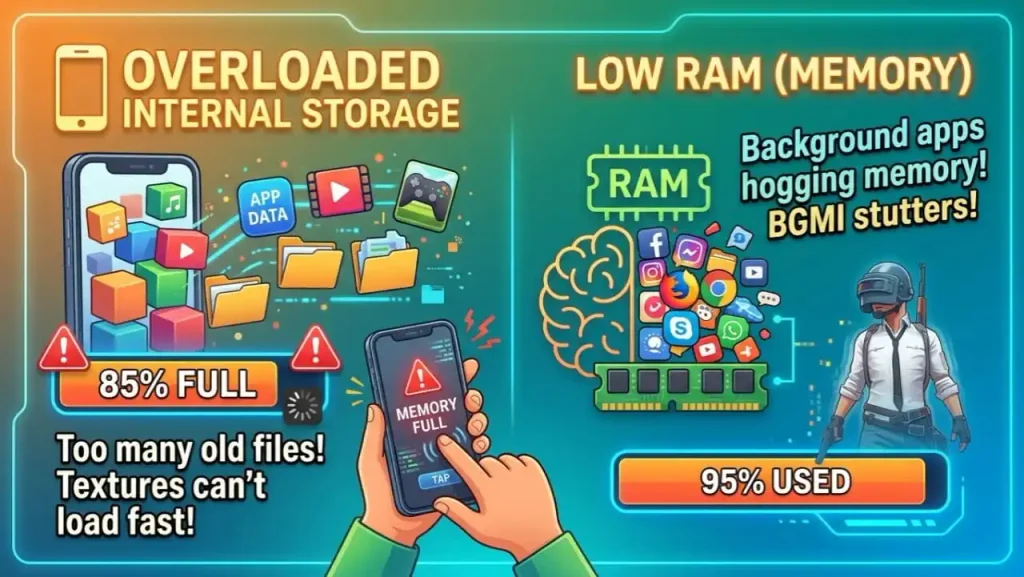
Android smartphones rely on free internal storage to manage virtual swap memory (Pagefiles). When your internal storage is filled past 85% or 90%, the processor struggles to read and write temporary game files quickly.
During intense hot drops where 30 players land together, your phone needs to load character models, skin textures, and sound files instantly. If your storage is packed with old WhatsApp media and screen recordings, your device slows down drastically, resulting in major frame drops.
Thermal Throttling & Phone Overheating
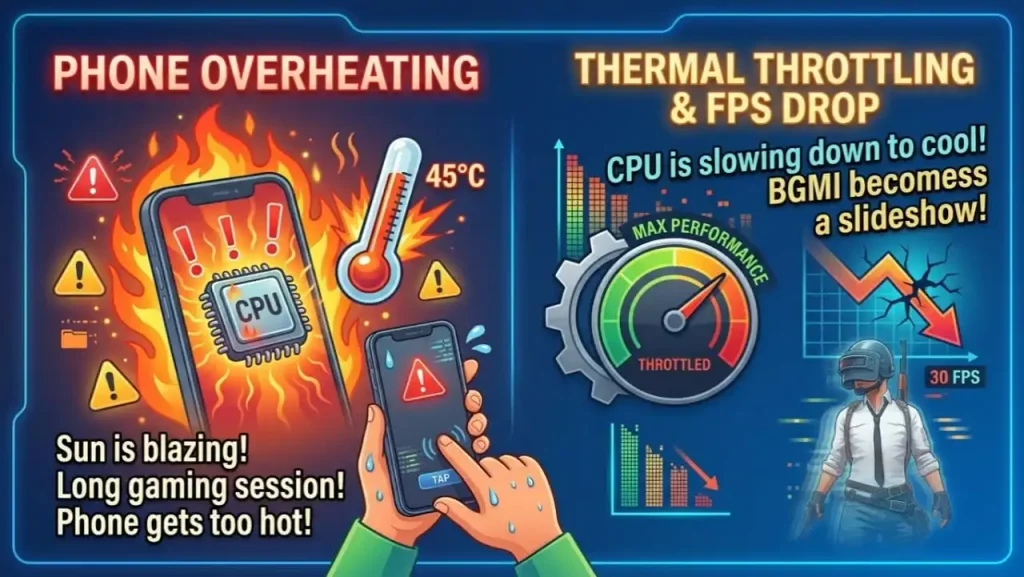
Modern Android chips (Snapdragon, MediaTek Dimensity, Exynos) have built in safety mechanisms. When you game for long sessions especially during Indian summers, your battery and processor heat up quickly.
Once the internal CPU/GPU temperature crosses around 42°C to 45°C, the system triggers thermal throttling. It artificially drops the processor clock speed to cool the phone down. When CPU speed drops, your BGMI frame rate drops right along with it.
Background Apps and RAM Consumption
Apps like Instagram, WhatsApp, Telegram, YouTube, and Google Chrome run multiple background services even when you aren’t using them. These background tasks aggressively consume CPU clock cycles and precious RAM space. If your phone has 6GB or 8GB of RAM and half of it is hogged by social media apps, BGMI won’t have enough headroom to cache game assets, leading to micro stutters during close range fights.
In-Game Auto Downloads & HD Audio/Graphic Packs
When you update BGMI, the game default settings often enable automatic downloading of extra resource packs over Wi-Fi or mobile data. If you are using a budget or mid range processor, running HD Graphics packs, Ultra Audio packs, and downloading resource files while playing ranked matches causes heavy background disk read/write loops. This destroys your frame stability.
Shader Compilation and Cache Pile up After Updates
Whenever Krafton rolls out an update, the game replaces core engine code, graphic shaders, and texture maps. However, your Android system still holds cached junk files from the older version inside the app cache memory.
When the new update attempts to execute fresh shader code on top of outdated cache files, system conflicts occur. This shader compilation issue manifests directly as screen freezing when enemies push your squad.
Unstable Network Pings and Background VPNs
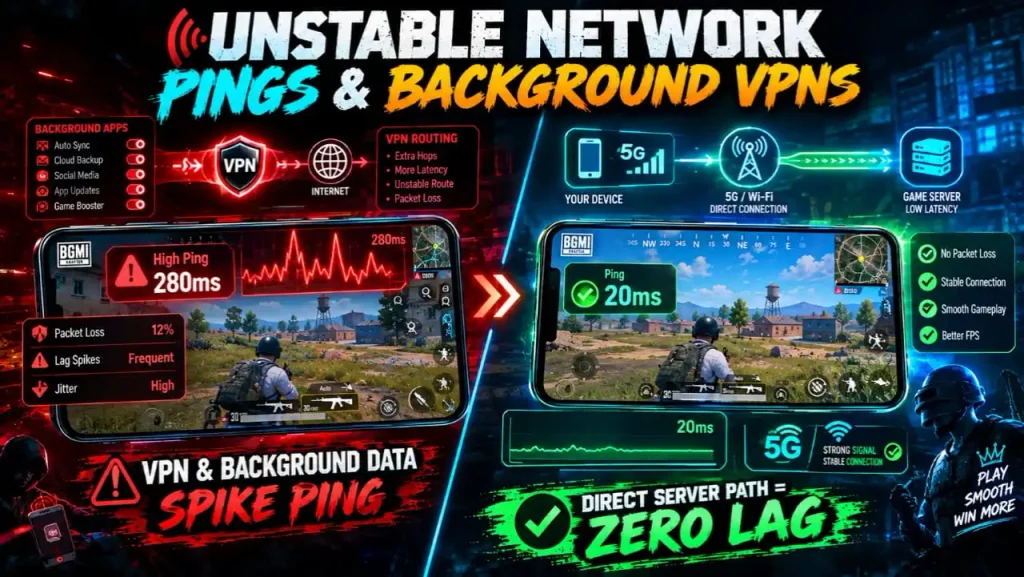
Network jitter is frequently misdiagnosed as graphic lag. When your network ping jumps from 20ms to 280ms suddenly, your game client loses synchronization with the server. This causes rubber banding, delayed bullet registration, and character teleportation.
Running background VPNs, active torrent downloads, or auto-syncing cloud services worsens ping spikes significantly.
System Battery Saver & Power Management Limits
Android’s native Battery Saver mode is designed to conserve power by capping CPU performance, limiting background processing, and lowering display refresh rates. If you play BGMI with Battery Saver turned on (or if your phone automatically switches it on when battery drops below 20%), your GPU gets throttled down to a fraction of its capacity, locking your game into a laggy experience.
How to Fix BGMI Lag or FPS Drop Permanently?
Now that you know what causes these performance drops, let’s look at the exact steps to fix BGMI lag after new update. Follow these steps sequentially on your Android device to optimize performance safely.
1. Make Some Storage Space Free on Your Phone
Your phone needs breathing room to process real time game assets smoothly. Always ensure that at least 20% to 30% of your internal storage remains free.
- Go to Settings > Storage (or About Device > Storage).
- Delete unnecessary 4K video clips, duplicate photos, and unused apps.
- Clear heavy media folders inside your gallery or file manager.
- Avoid keeping huge screen recordings stored directly on your phone’s internal storage while playing.
Keeping sufficient free space ensures your storage controller can read game textures instantly during fast movement and vehicle driving.
2. Clear BGMI App Cache and System Cache
Clearing old patch remnants resolves graphic conflicts without deleting your controls or custom sensitivity layouts.
- Open Settings on your Android phone.
- Navigate to Apps or App Management.
- Tap on See all apps and locate Battlegrounds Mobile India (BGMI).
- Tap on Storage & Cache.
- Tap Clear Cache (Do NOT tap Clear Data/Clear Storage, as that will delete your maps and resource files).
Pro Tip: To maintain overall system health and keep background services clear, reference official developer guides on Android optimization [Google Play Store Support Page].
3. Disable Automatic Downloads in BGMI
Stop the game from downloading unnecessary cosmetic files and heavy map assets while you are in a match.
1. Launch BGMI and log in to the main lobby.
2.Tap the Download Icon (small arrow/folder icon on the main lobby screen or inside settings).
3.Tap on the Settings Gear Icon inside the Download Center.
4. Uncheck all options related to Auto download over Wi-Fi and Auto download over Cellular Data.
5. Avoid downloading the HD Resource Pack or Ultra Audio Pack if you play on a budget or mid range device. Stick strictly to the Low Spec Audio and Standard Graphics Resource Pack.
4. Close Active VPNs and Disable Background Data Usage
VPNs route your traffic through indirect server hops, increasing physical distance to BGMI’s regional servers and introducing server side packet loss.
- Fully close and uninstall any free VPN apps before launching the game.
- To stop background apps from consuming bandwidth while you play:
- Go to Settings > Apps > See all apps.
- Select background heavy apps like Instagram, Facebook, or YouTube.
- Tap Mobile Data & Wi-Fi.
- Toggle OFF Background Data.
5. Enable Developer Options & Adjust Graphics/Animation Scale
Android Developer Options allow you to fine-tune graphic rendering and reduce user interface delays.
How to Enable Developer Options:
- Go to Settings > About Phone.
- Scroll down to Build Number (or Version on MIUI/Realme UI) and tap it 7 times continuously until you see a pop-up saying “You are now a developer!”.
Tweak System Graphics Driver and Animation Scales:
- Go back to Settings > System > Developer Options.
2. Scroll down to Graphics Driver Preferences.
3. Locate BGMI in the list of apps and change its graphics driver setting from Default to System Graphics Driver.
4. Scroll further down in Developer Options until you find these three animation settings:
- Window Animation Scale
- Transition Animation Scale
- Animator Duration Scale
5. Change all three settings from 1x to 0.5x (or turn them Off entirely). This reduces UI animation delays and frees up hardware resources for game rendering.
6. Turn Off Battery Saver and Enable Built In Game Turbo / Game Space Mode
Battery saver modes throttle your GPU, so you should always disable them prior to gaming.
- Swipe down your quick notification shade and ensure Battery Saver / Power Saving Mode is completely OFF.
- Turn ON your smartphone’s official game optimization suite (such as Xiaomi Game Turbo, Samsung Game Launcher, Realme Game Space, OnePlus Games, or iQOO Ultra Game Mode).
- Open your game suite settings and set the performance profile specifically for BGMI to Performance Mode or Pro Gamer Mode.
- Enable features like Memory Cleaner, Touch Optimization, and Do Not Disturb (DND) inside the game launcher overlay.
7. Optimize In Game Graphics Settings
Using incorrect graphic pairings in BGMI is the single biggest cause of frame drops and thermal throttling. The fundamental rule of mobile esports is simple: Lowest Graphics + Highest Frame Rate.
Open BGMI, go to Settings > Graphics & Audio, and configure as follows:
| Graphic Option | Recommended Setting | Technical Reason |
| Graphics | Smooth | Reduces GPU load and eliminates unnecessary shadow processing. |
| Frame Rate | Extreme (60 FPS) / 90 FPS / 120 FPS | Unlocks maximum FPS your device hardware can handle safely. |
| Style | Colorful or Classic | Provides high enemy visibility without performance overhead. |
| Anti-Aliasing | Close (Disabled) | Disabling edge-smoothing prevents severe frame drops during smoke drops. |
| Colorblind Mode | Normal or Protanopia | Personal preference; negligible impact on performance. |
| Auto-Adjust Graphics | DISABLE | Prevents the game engine from dynamically lowering FPS during fights. |
Crucial Rule: Never set your graphics to Balanced, HD, or HDR if you want stable, drop free FPS. High graphics look nice, but they heat up your phone within 10 minutes and trigger sudden frame throttling during squad fights.
8. Perform Routine Repair in BGMI Login Screen
- If you continue to experience micro stutters or missing game files after applying system tweaks, Krafton’s built in repair tool can rebuild corrupted patch files without needing a complete game reinstall.
- Open BGMI and stay on the main login screen (Log out of your account via In-Game Settings > Basic > Log Out if you auto login).
2. On the right side of the login screen, tap the Repair button.
3. Check the box for Routine Repair (Leave Restore Default Settings unchecked if you want to save your custom controls layout).
4. Tap OK. The game will verify core assets, clean corrupted patch files, and ask you to restart the game.
5. Relaunch BGMI and re-download the basic 30MB update patch.
Safety Assurance: The Routine Repair function is an official tool provided by Krafton. It cleans broken files safely and will never risk your account status. For official updates on game patches and account guidelines, refer directly to official resources [Official Krafton BGMI Support].
9. Keep Your Phone Cool While Gaming
Heat is the ultimate enemy of mobile gaming performance. Controlling your phone’s external and internal temperature keeps thermal throttling at bay.
- Never Play While Charging: Fast charging generates high heat across the battery and motherboard. Gaming while plugged in forces thermal throttling almost immediately.
- Remove Heavy Phone Covers: Thick silicone or leather back cases trap heat inside the phone body. Strip off your back cover before jumping into ranked games.
- Game in a Cool Environment: Play under a ceiling fan or in an air-conditioned room.
- Consider a Semiconductor Phone Cooler: If you play competitive tournaments or live stream on mid range devices, investing in an inexpensive clip on external cooling fan can drop internal device temperatures by 10°C–15°C, sustaining flat 60/90 FPS lines during long sessions.
10. Turn Off RAM Expansion / Virtual RAM
Phone manufacturers frequently advertise features like “8GB + 8GB Extended RAM.” While Extended/Virtual RAM sounds great on paper, it often hurts real-time gaming performance.
- Virtual RAM works by partitioning a portion of your internal flash storage (UFS 2.2 / UFS 3.1) to act as secondary RAM. However, flash storage read/write speeds are significantly slower than physical LPDDR4X or LPDDR5 RAM chips. When BGMI tries to swap fast game data into slow virtual storage memory, it creates noticeable micro-stutters during fast movements.
- Go to Settings > RAM & Storage Space > RAM.
- Locate RAM Expansion / Virtual RAM / Extended RAM.
- Disable the toggle completely and restart your smartphone.
Once turned off, your phone relies strictly on high speed physical RAM, eliminating random stutters during close range 1v4 fights.
When Hardware Has Reached Its Limit (Upgrading Your Setup)
If you have tried all the settings above, cleaned your cache, playing on “Smooth + Extreme”, and your phone still stutters heavily, your device processor might simply be reaching its hardware limitations for modern game updates.
Older processors like Snapdragon 680, Helio P35, or entry level chips are designed for day-to-day tasks rather than running high intensity Battle Royale titles with modern physics engines. If you are looking for an upgrade without breaking the bank, modern budget mid range gaming phones like the Redmi 17 5G under ₹25,000 offer dedicated game centric processors, fast UFS storage, and high refresh rate displays designed to run BGMI smoothly at high FPS.
[Read our full Redmi 17 5G Review & BGMI Gaming Performance]
Final Thoughts
Fixing post update lag in BGMI comes down to eliminating hardware bottlenecks and disabling performance limiting Android settings. By freeing up internal storage, disabling virtual RAM, clearing update cache, turning off auto-downloads, and sticking strictly to “Smooth” graphic configurations, you can achieve a stable frame rate on almost any modern Android phone.
Avoid third party apps, modified APKs, or config edits. Stick to these safe, native system optimization methods to enjoy smooth 60 FPS or 90 FPS gameplay while keeping your BGMI account completely secure.